Straight answers about Chrome tabs.
The quick answer comes first, using what’s already in Chrome. Then where TabOverview helps, if it does.
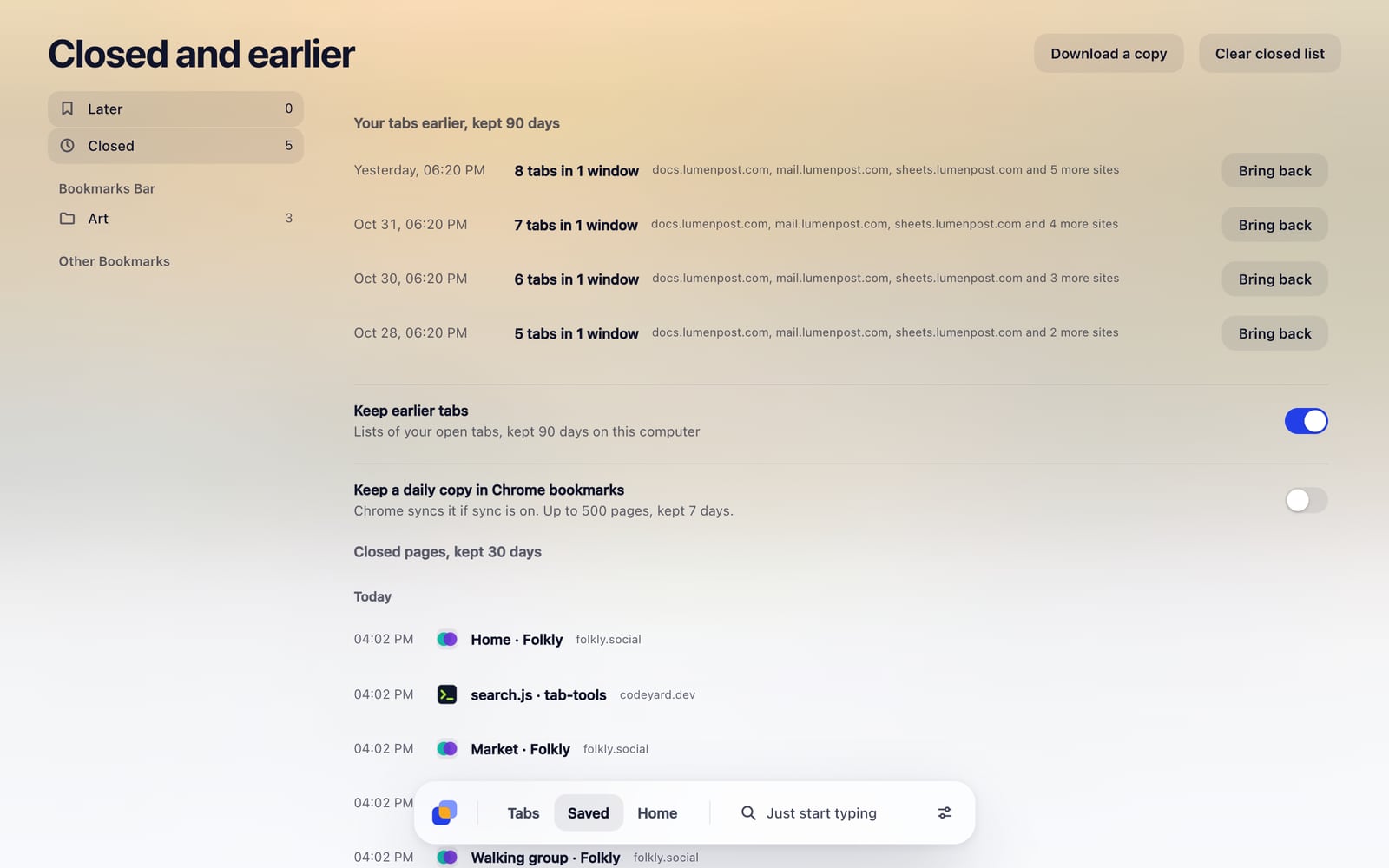 How to restore tabs in Chrome: closed, crashed or gonePress Ctrl + Shift + T, or ⌘ + Shift + T on a Mac, to bring back what you just closed. How to restore tabs after a crash or restart, and what to do if they’re gone.
 How to use split view in Chrome: two tabs side by sideRight-click a tab and choose a split view option, or drag a tab to the edge of the window. Shortcuts, how to change or end split view, and what to do if you don’t have it.
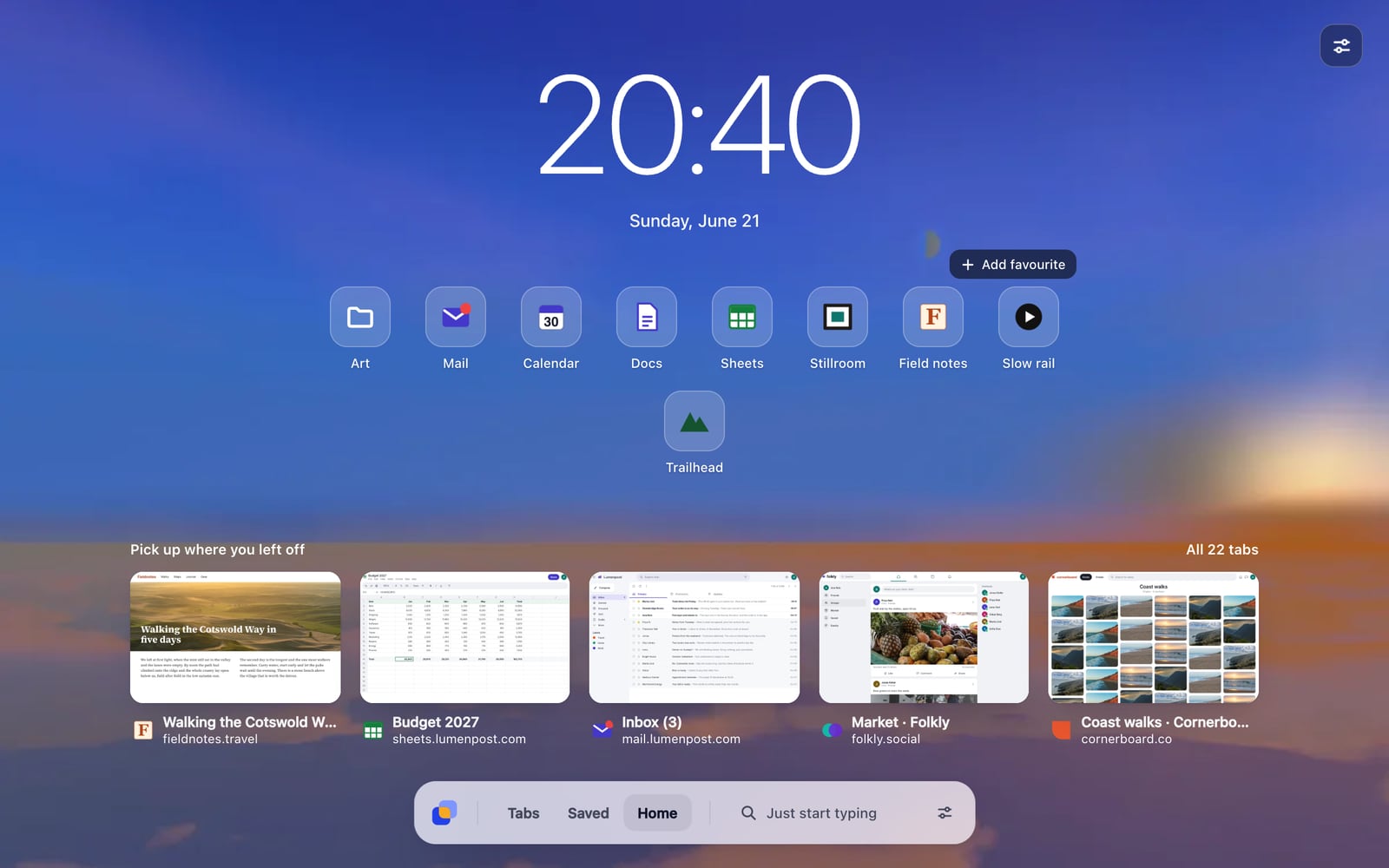 How to change your Chrome background: photo, painting or videoOpen a new tab, click Customize Chrome, choose Change theme, then pick a theme or upload an image. What to do if it won’t work, and how to use several photos or a video.
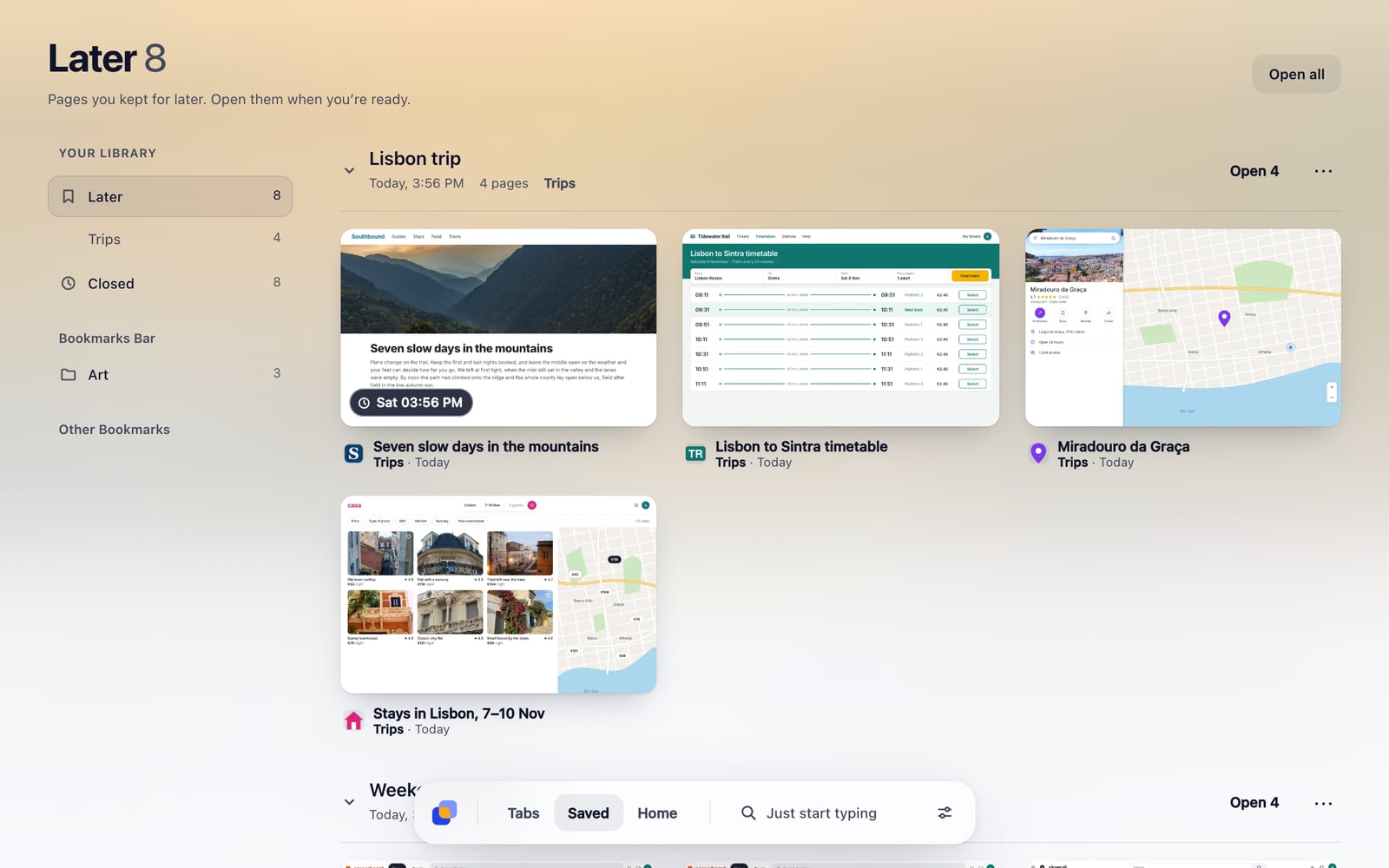 How to save tabs in Chrome and get back to them laterPress Ctrl + Shift + D, or ⌘ + Shift + D on a Mac, to save every tab in a window to a bookmarks folder. How to save one tab, a group or a whole session, and bring them back.
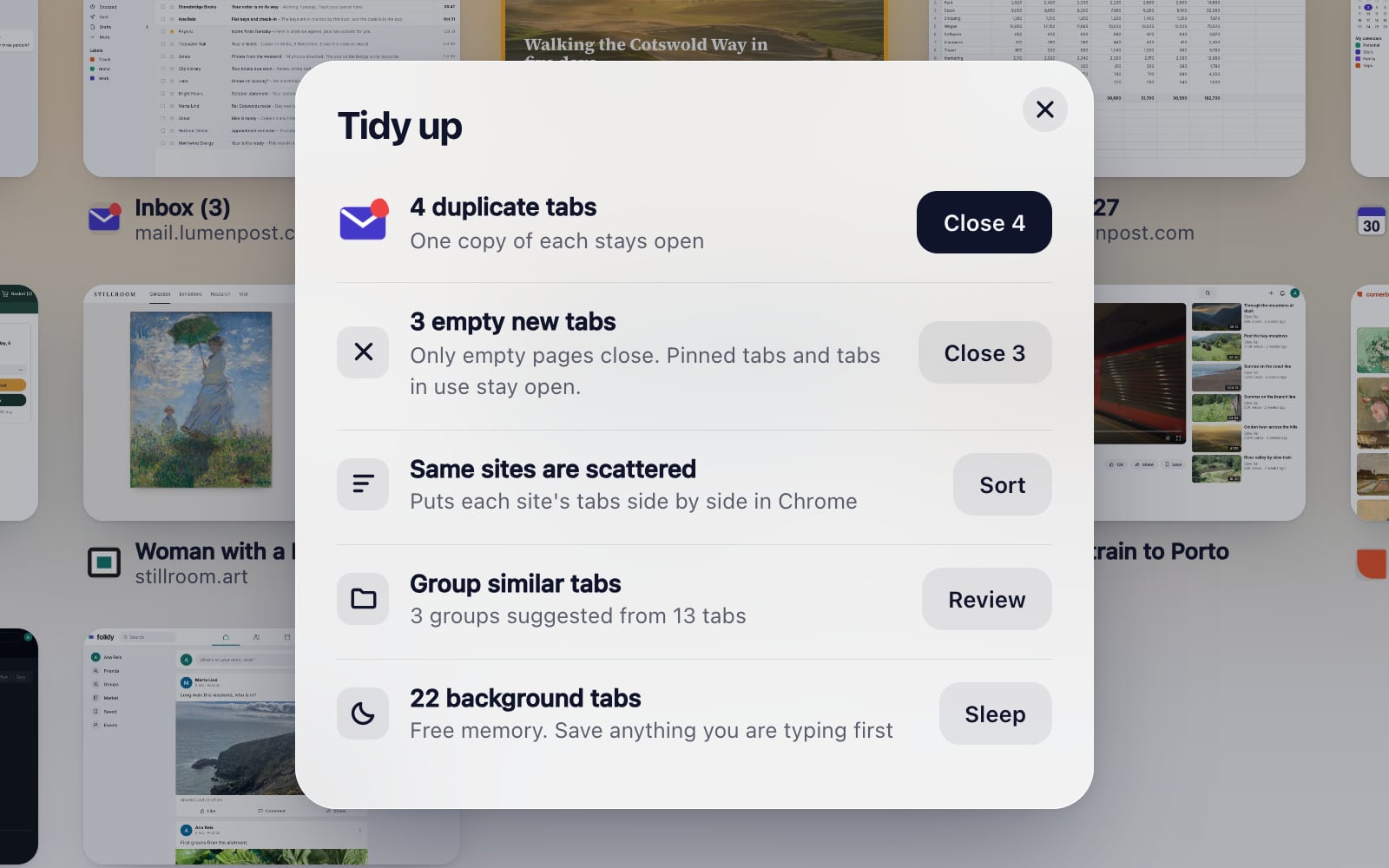 Why is Chrome using so much memory? What actually helpsChrome keeps pages in separate processes, so more tabs means more memory. How to see what’s using it, turn on Memory Saver, and free memory without losing your tabs.
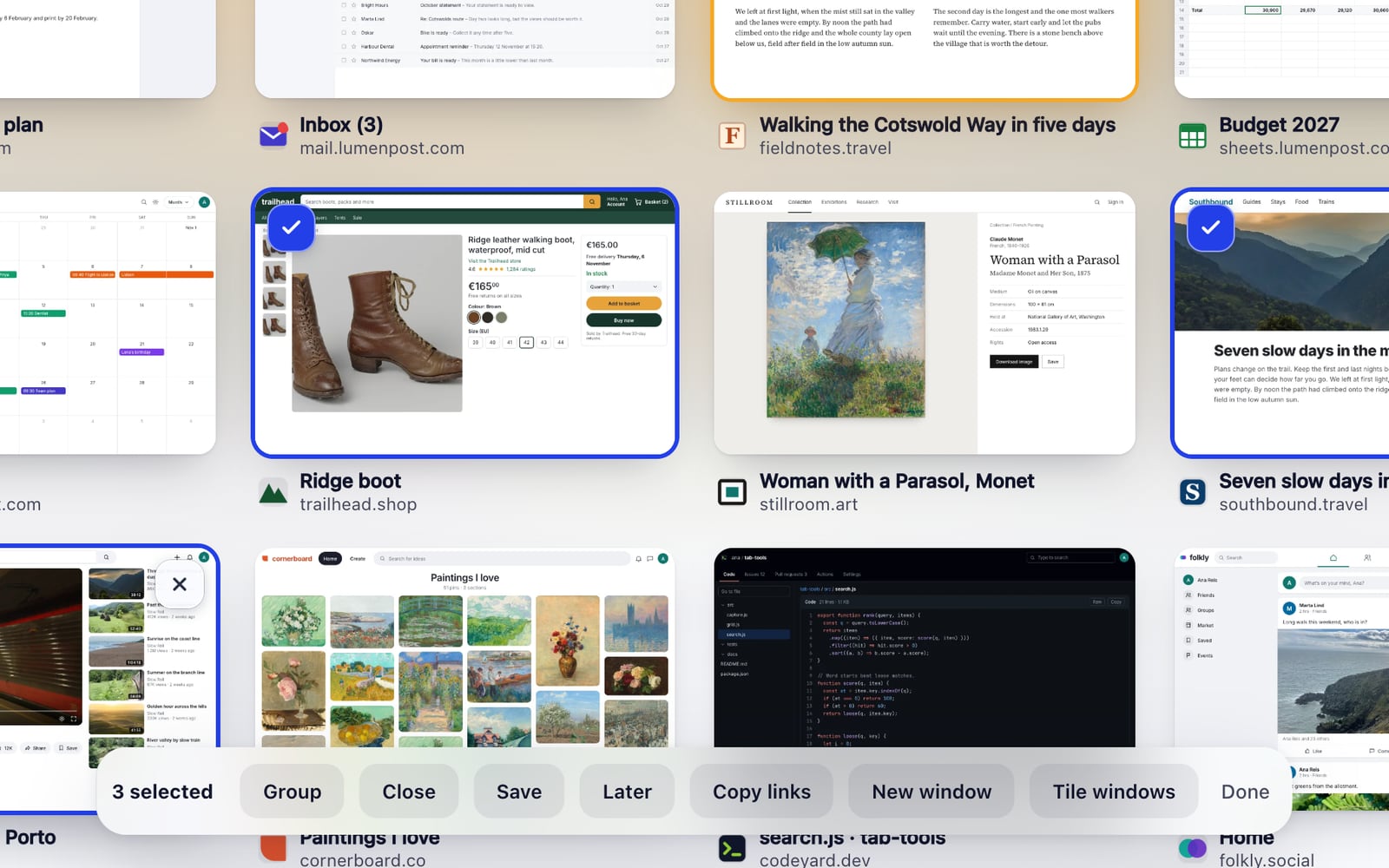 Chrome tab groups: how to make, save and reopen themRight-click a tab, choose Add tab to group, then New group. How to name, collapse, close and reopen tab groups in Chrome, and what happens when you close them.
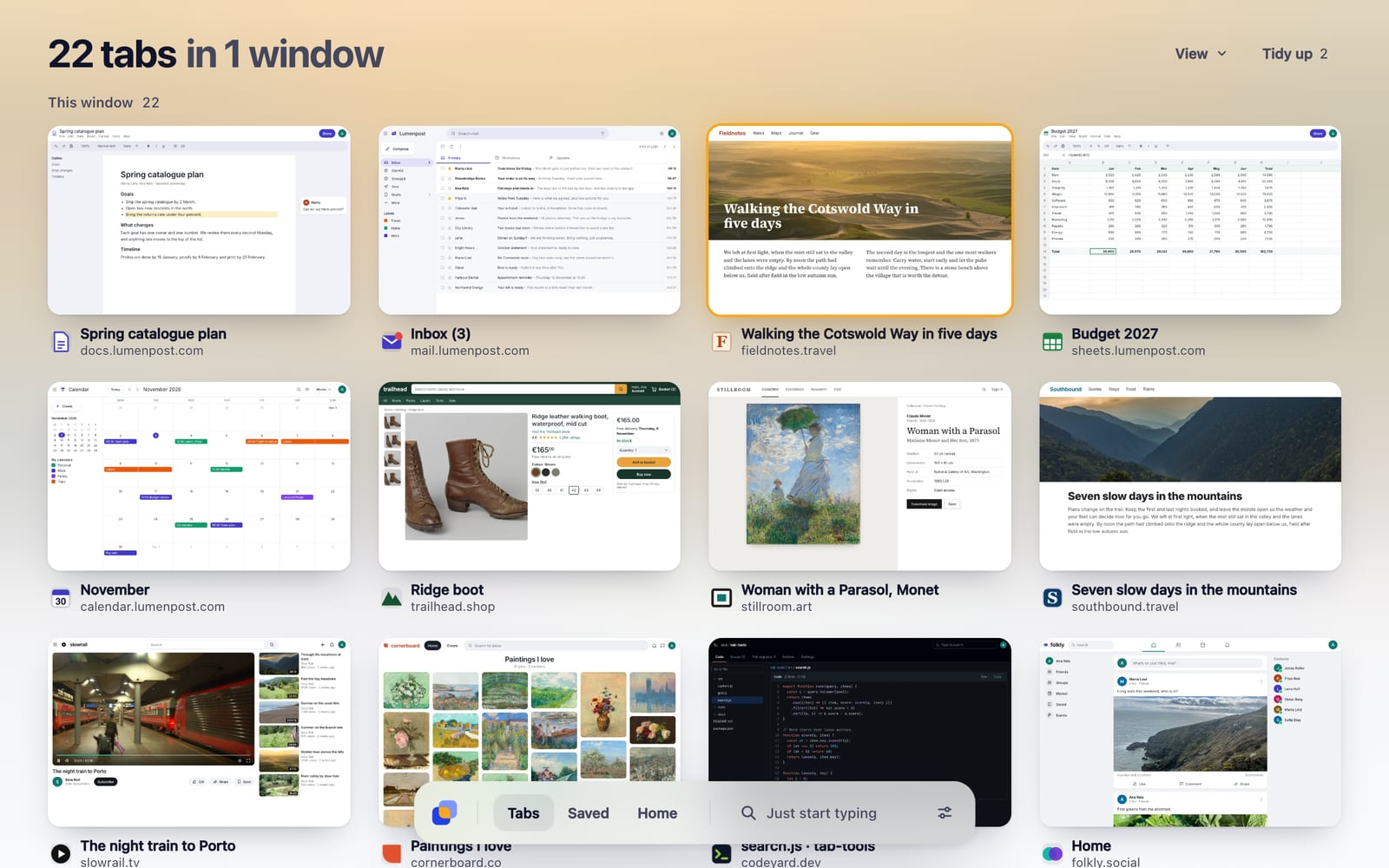 How to choose a tab manager for Chrome: 7 things to checkWhat a tab manager can read, whether it needs an account, where your tabs live, what happens if you remove it, and what’s behind a paywall. Seven checks you can do in minutes.


Short guides
- Set it up in your browser: Edge, Brave, Vivaldi and Opera
- Coming from Edge Collections: find your pages and bring them over
- Too many tabs open in Chrome? What to do
- How to search your open tabs in Chrome
- How to see all your open tabs in Chrome
- How to close duplicate tabs in Chrome
- How to organize tabs in Chrome
